Key Takeaways
- You can directly install IPTV Smart TV applications without needing external hardware like a Firestick.
- For LG (WebOS) and Samsung (Tizen), IBO Player and Smart IPTV (SIPTV) are the most reliable applications.
- Configuration is done via a web browser using your TV’s unique MAC address and the M3U link provided by your host.
- Hardwiring your Smart TV via Ethernet ensures the highest quality 4K streaming experience.
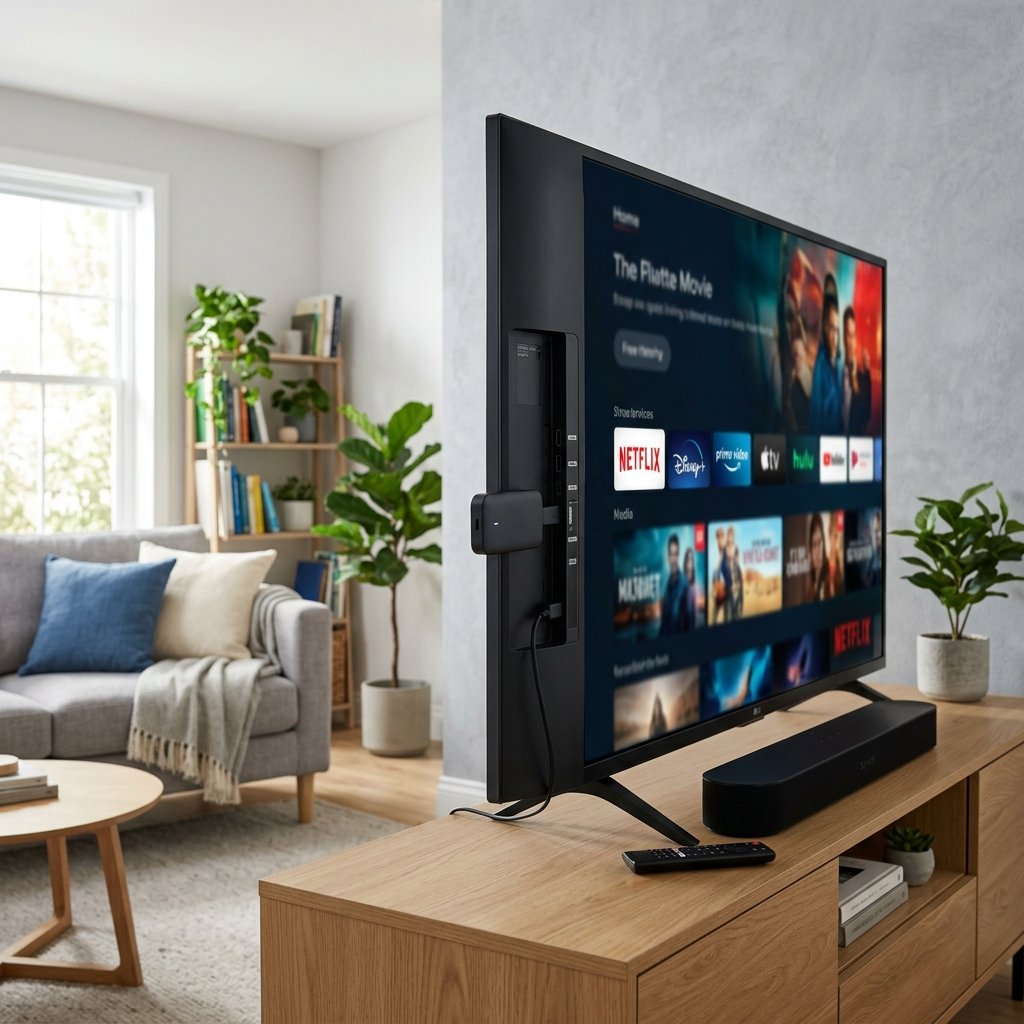
One of the most appealing aspects of modern streaming is the ability to eliminate hardware clutter entirely. Rather than relying on external dongles or set-top boxes, you can stream a global roster of channels directly through your television’s native operating system. If you are wondering how to install IPTV Smart TV applications on your Samsung (Tizen) or LG (WebOS) device, you are in the right place. The process is remarkably straightforward and can be completed in less than five minutes.
This comprehensive UK guide will walk you through the exact steps required to locate the best applications on your TV’s app store, pair your device using its unique MAC address, and upload your premium playlist to ensure immediate access to your favourite live sports and VOD content.
1. Choosing the Right Application
Unlike Android-based televisions (such as Sony or Philips) which have access to the open Google Play Store, Samsung and LG utilise closed operating systems. Consequently, you cannot install standard APK files like IPTV Smarters Pro directly. Instead, you must rely on applications specifically vetted and hosted within the Samsung and LG app stores.
Currently, the two most reliable and frequently updated applications for these systems are:
- IBO Player: A modern, sleek application that handles large playlists exceptionally well. It features a clean interface that categorises Live TV and VOD seamlessly.
- Smart IPTV (SIPTV): The original and most famous Smart TV app. While the interface is slightly dated compared to IBO Player, it is incredibly lightweight and stable, particularly on older television models.
2. Finding and Installing the App
The first step is to download your chosen application to your television. Grab your remote control and navigate to your Smart Hub (on Samsung) or LG Content Store. Use the search function (typically a magnifying glass icon) and type in “IBO Player” or “Smart IPTV”. Once located, select the application and click “Install”.
It is important to note that these applications are simply media players; they do not contain any content. They operate on a free 7-day trial basis, after which you are required to pay a small, one-off activation fee (usually around €5) directly to the app developer (not your IPTV provider) to unlock the app permanently.
3. Locating Your MAC Address
Once the app is installed, open it. The very first screen will display a string of letters and numbers known as a MAC Address (e.g., A1:B2:C3:D4:E5:F6). This MAC address acts as the unique identifier for your specific television.
Write this MAC address down precisely. You will need it to upload your playlist. Do not share this MAC address publicly, as it is tied directly to your subscription access. If you have concerns regarding data security on smart devices, the Wikipedia MAC address page provides excellent context on how network identifiers function.
4. Uploading Your M3U Playlist
Because typing long, complex URLs using a television remote is incredibly frustrating, the configuration process is handled remotely via a computer or smartphone. When you purchase a subscription from our Premium Packages, you will receive an email containing an “M3U Link.” This link is essentially a massive text file containing the digital addresses of all 50,000+ channels.
To upload this playlist to your TV:
- Open a web browser on your phone or laptop.
- Navigate to the configuration website of your chosen app (e.g.,
iboplayer.com/device/loginorsiptv.app/mylist). - Enter the MAC address you noted from your TV screen into the designated field.
- Paste the M3U Link you received in your welcome email into the “URL” or “Playlist Link” field.
- Click “Upload” or “Save”.
5. Restart and Stream
Once the website confirms the playlist has been uploaded successfully, return to your Smart TV. Using your remote, press the “0” button or locate the “Reload” option within the app’s menu. Alternatively, simply close the application entirely and reopen it.
The app will now connect to our servers, download the channel list, and populate the screen with your Live TV, Movies, and Series categories. If you experience any stuttering during playback, refer to our comprehensive Installation Guide to learn how hardwiring your TV via an Ethernet cable can permanently resolve buffering issues.